Have you ever triple tapped the back of your iPhone? No?
I wish I could remember who on Twitter pointed out this Accessibility feature, but I wanted to highlight it here and how I use this gesture because it's such a fun shortcut for automation nerds.
Watch this.
At any time, from any app, whenever I need to remember something, I can tap the back of my phone three times. An input dialog will appear, wait for me to type in what I need to do, and file away those items into OmniFocus for later. I never have to leave the app I'm currently using or even launch OmniFocus at all.
Here's how.
Settings.app → Accessibility → Touch → Back Tap
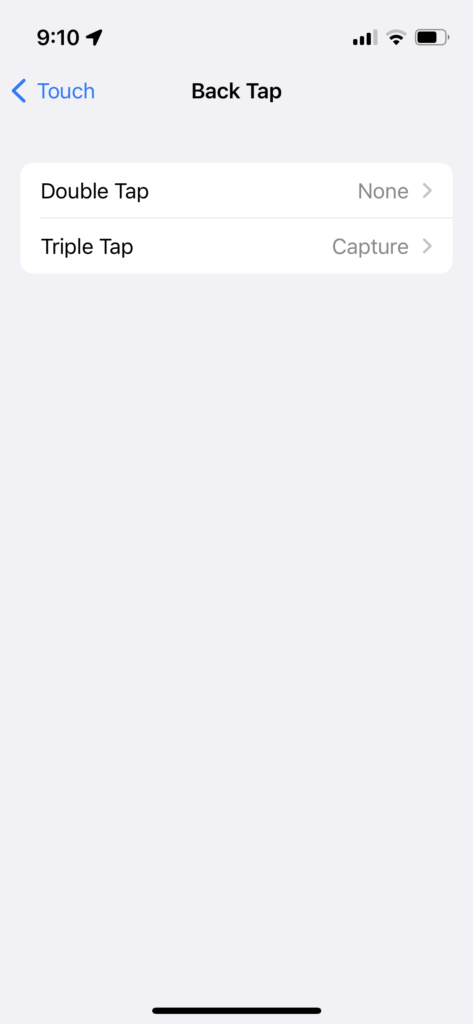
From here, iOS lets you assign actions to two different gestures: double tap or triple tap. You tap the back of your phone with a finger in quick succession, just like you would double click a mouse button.
Options include helpful system commands like
- Open Camera
- Lock Screen
- Lock Rotation
- Take a Screenshot
- Turn on the Flashlight
as well as enabling iOS's many Accessibilty affordances and, for our purposes, running a Shortcut.
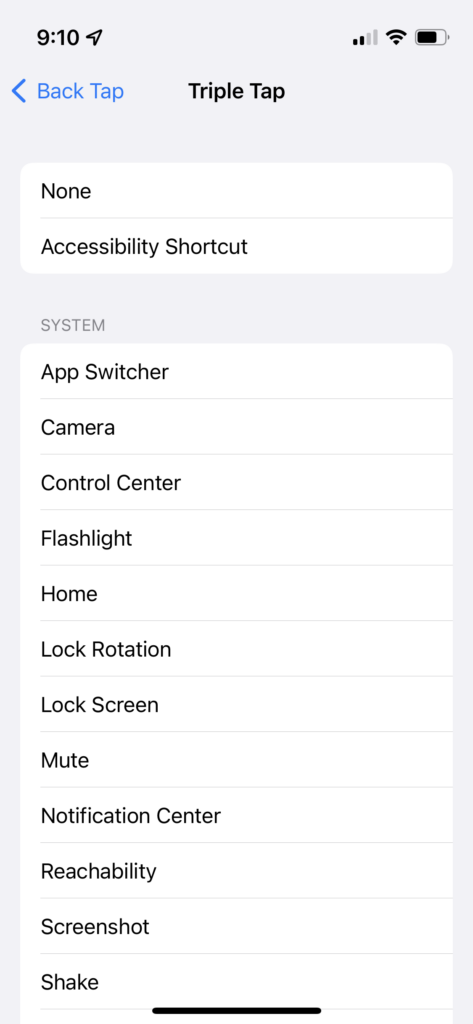
(I'll go ahead and add here that I only use the triple tap option because I found double tapping is too easily accidentally triggered during my normal day-to-day phone usage.)
If you have a Shortcut that you use frequently or want immediate access to, these tap gestures are a fantastic way to launch it.
As for my task capturing Shortcut, it's pretty simple.
- It prompts for input
- Splits what you enter into individual lines
- And creates a new OmniFocus task from each one
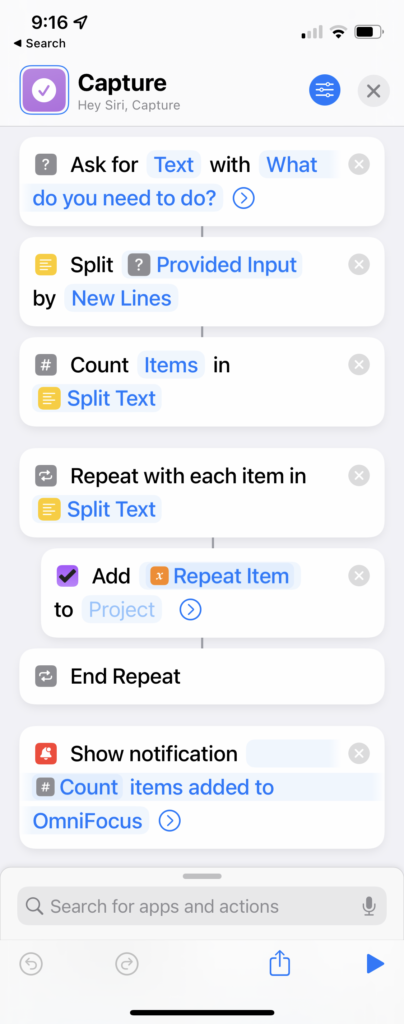
You can download the Shortcut here.